GUIDE · POTFORGEHow to copy a pot's shape from a photo, for 3D printing
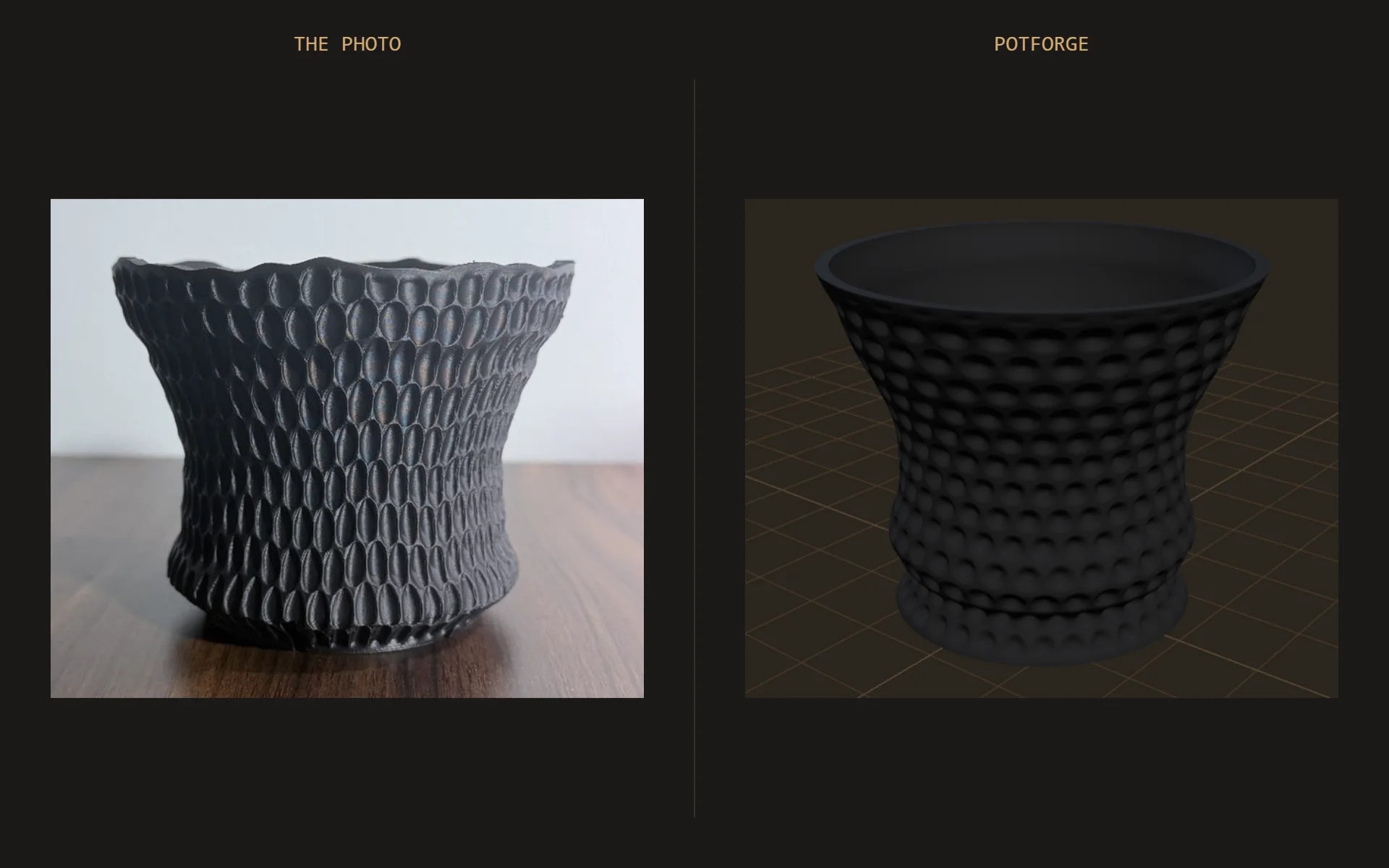
Open KUZE Potforge, choose Shape from a photo under Shape, pick a photo of a pot taken from the side and drag a box tightly round it. Potforge traces the outline and gives your pot the same silhouette and proportions: it keeps the width and takes the height from the photo, or from the real height you type. It also counts vertical ribs and finds rings round the pot, and can add them as relief. Then add a pattern, a rim and drainage as with any pot, and download the STL. It needs no account to try, no CAD, and the photo never leaves your browser.
Which photos work
Potforge reads the edge between the pot and what is behind it. The clearer that edge, the closer the outline.
- From the side. Hold the camera at about half the pot's height and level with it. A photo from above shows the rim and the base as ovals; Potforge puts its lines at their widest and corrects the height for the angle, but a level photo is still the most accurate.
- A plain background. A wall, a sheet of paper or the sky behind the pot. When the pot and its background are close in colour, the window says so: check the outline, or use a plainer photo.
- The whole pot in the frame, rim to base, without a hand or another object overlapping its edge.
- Plants and saucers are fine. Leave the plant out of the box; Potforge starts below it. A saucer or feet underneath are left out, and a glossy table's reflection does not count as part of the pot.
- Any round object with a clear side view works: a vase, a lamp shade, a jar, a cup, a bottle.
JPG, PNG and WebP all work, from a phone or from the web.
Step by step
-
Open the window
In Potforge, open Shape and press Shape from a photo. The window docks on the left so the pot stays in view; you can turn and zoom it while you work.
-
Pick the photo
Press Choose a photo or drop one onto the window. Potforge finds the object and draws a box round it.
-
Frame the pot
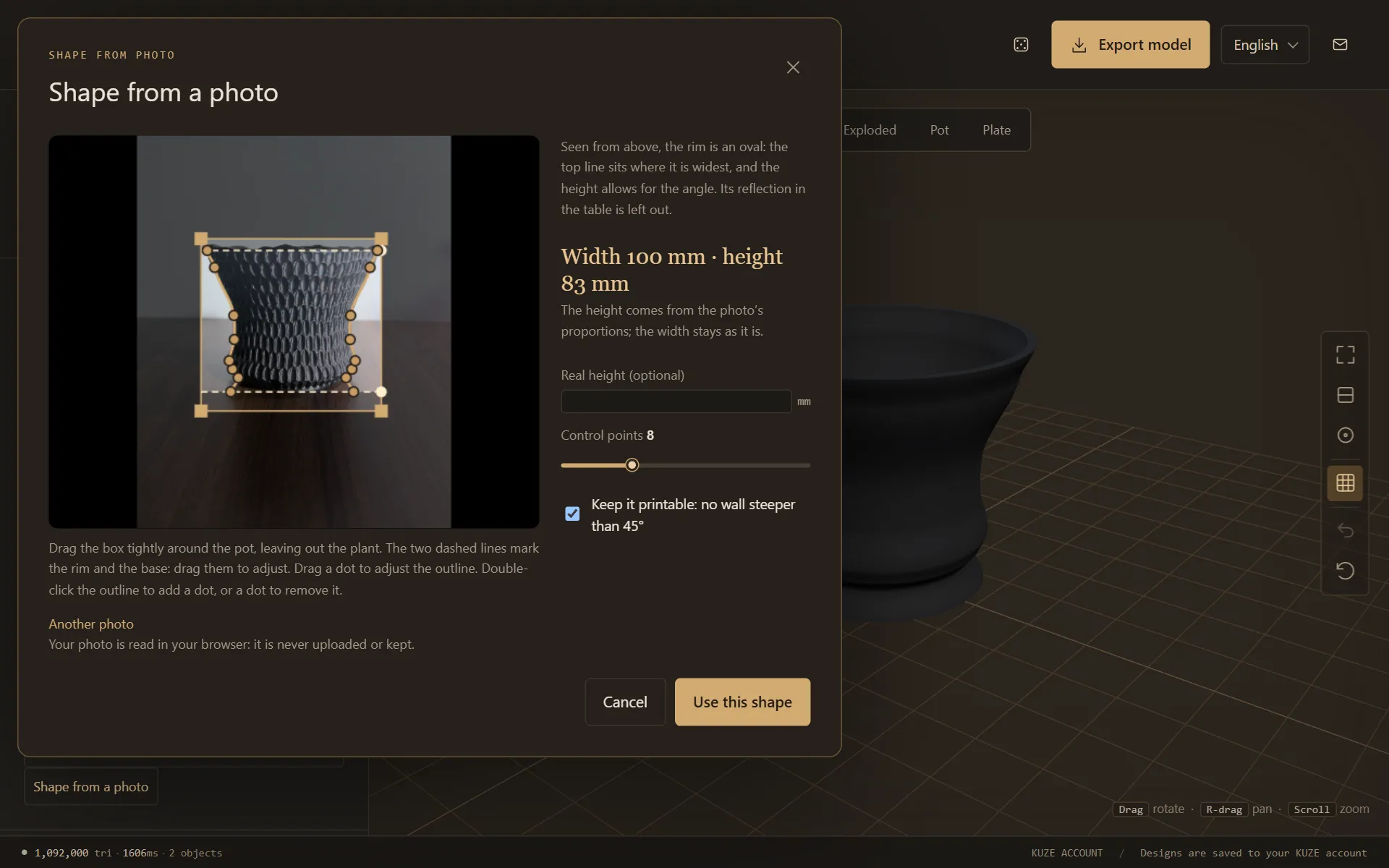
Drag the box tightly round the pot. Two dashed lines mark its top and its base; drag them onto the rim and the base if they need it. The pot on the right updates as you go.
-
Set the size
Your pot keeps the width it had, and the height follows from the photo's proportions. If you know the real pot's height, type it in Real height; the width then follows from the photo instead. The window shows the size it will use, in millimetres.
-
Refine the outline
Control points sets how closely the outline follows the photo (2 to 24; it starts at 8). Fewer points give a smooth, simple curve; more follow every bulge. Drag a dot on the photo to adjust it by hand, double-click the outline to add a dot and double-click a dot to remove it. Fit again drops your hand edits.
-
Ribs and rings
If the pot has vertical ribs or rings round it, the window offers to add the ones it found, such as “Add the 12 ribs and 2 rings it found”. Their number and place come from the photo; their depth is a guess you can change later. Spiral ribs keep their twist.
-
Use it
Press Use this shape. Undo brings back the shape you had before. From here it is an ordinary Potforge pot: choose the sides, a surface pattern, a rim cut, drainage and legs, then save it and download the STL.
Before you print
- Overhangs. Leave Keep it printable on, and any wall steeper than 45° is eased to 45°, so the pot prints without supports. Turn it off to keep the photo's exact curve; the window warns when some of the wall leans past 45°.
- A wide flared rim or a bulb-shaped body is where the 45° easing changes the look most. Compare it on the model with the option on and off.
- Rib depth. Ribs found in a photo start at a guessed depth. Check it on the model, and keep shallow ribs on a small pot: they print cleaner.
- Drainage. A pot copied from a vase has no hole. Add drainage in Potforge if a plant will live in it.
Questions
Is the photo uploaded?
No. The photo is read in your browser and never uploaded or kept. Only the outline it gives, as the pot's profile, goes into the design.
Do I need an account?
Not to trace the shape. Like any pot you change in Potforge, it is saved to My designs with a free KUZE account before its STL downloads.
Can it copy a square or hexagonal pot?
The photo gives the side profile: how the wall swells and narrows from base to rim. The cross-section is set in Potforge as usual, so for a hexagonal pot choose 6 sides and the traced profile runs round it.
Can I sell prints of a pot I copied?
Selling prints needs the Commercial plan, as with any KUZE design. A shape you copy may belong to its designer: copying a pot to print for yourself is one thing, selling copies of someone else's design is another, and clearing that is up to you.
Can an AI assistant start this for me?
Yes. Send ChatGPT, Claude or another assistant a photo of the pot and ask for a Potforge design link. Its link opens the pot with Shape from a photo already open; pick the same photo there and Potforge traces the real outline.
Free to design, nothing to install. Plans and the rest of the answers: Potforge FAQ. For a pattern from a photo instead of a shape, see photo textures.